

Access your documents anytime
Introducing MYQMT, your secure online customer portal designed to make managing your insurance policy easier and more convenient. Through MYQMT, you can:
- Access policy documents and correspondence
- Upload documents securely
- Send messages directly to our team
- Manage your account details
Find more information on this page or contact us below.
Contact us Call usNeed support?
If you’re experiencing any issues accessing or using the portal, or if you haven’t received your registration email, our team will be happy to help. Please provide as much detail as possible about the issue you’re encountering, including screenshots where available, so we can investigate quickly.
Call us on 01227 285 540 or email admin@qmtcommercial.co.uk and we’ll assist you as soon as possible.
Getting started with MYQMT
How to register your account
As part of setting up your policy with us, you’ll be invited to register for MYQMT, our secure customer portal. Simply follow these steps to create your account and get started.
- You will receive an email invitation from MYQMT.
- Click the registration link contained within the email.
- Please note: Registration links are valid for 30 minutes only.
- Enter your email address and click Next.
- Your email address must match the address we currently hold against your policy.
- A second verification email will be sent to you.
- Click the link within that email to continue.
- This verification link is also valid for 30 minutes.
- You will be prompted to create a password
- Confirm your password
- Once completed, your MYQMT account will be activated and you will be taken directly to your customer portal.
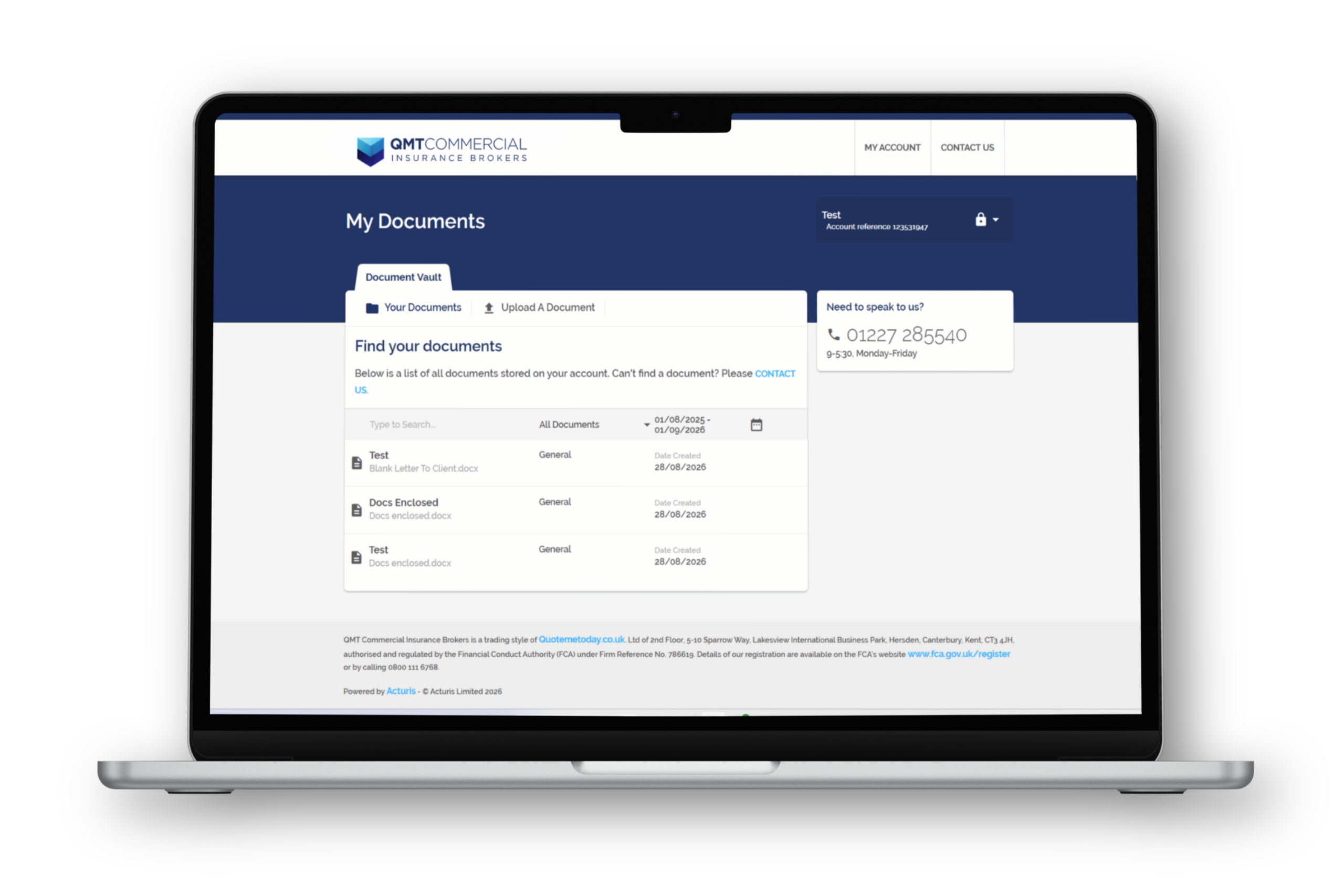
Your MYQMT dashboard
When you first log in, or whenever you select your account, you’ll see two main sections:
Your documents: This area contains copies of all relevant policy documentation and correspondence, including:
- Your welcome pack and policy document
- Mid-term adjustment documents
- Renewal quotes
- Requested documentation reminders and general correspondence
Upload a document: This area allows you to securely send files directly to our team.

Downloading your documents
The document area includes several tools to help you locate information.
You can:
- Download documents by clicking on them
- Filter by document type, such as Policy Documents
- Select a specific date range, handy if you want to exclude older policies
- Search using the search bar within the document area
Other features in MYQMT
As well as giving you secure access to your policy documents and correspondence, MYQMT includes several convenient features to help you manage your account and communicate with us.
| Contact us | The Contact Us option allows you to send messages securely to our team. However, please do not use the portal to request urgent changes to your policy. |
| Manage your account | Update your contact details in your MYQMT account. Please note this updates our records only and does not amend your policy. |
| Reset your password | You can also change your MYQMT password at any time from within your account settings. |
Uploading your
requested documents
Your insurer may request supporting documentation to verify the information provided when arranging your policy. For guidance on the types of documents that may be required and how to submit them correctly, please visit our documents section.
Once you’re ready, you can securely upload your documents through MYQMT in just a few simple steps, as outlined here.
Step One
Click on the Upload a Document tab and start completing the required form fields, including your message to us
Step Two
Under Concerns a Claim or Policy, select Policy, then under Corresponding Policy, select the relevant policy
Step Three
Upload your files by dragging and dropping them or clicking on the upload area (use a zip folder for multiple files)
Step Four
Click Submit and we'll process your documents as soon as possible - we'll confirm if we need anything further
Multiple users can be added to MYQMT. Simply let us know who needs access.
